Comprehensive guidelines on installing security plugins to protect your browser
Understanding the Importance of Browser Security
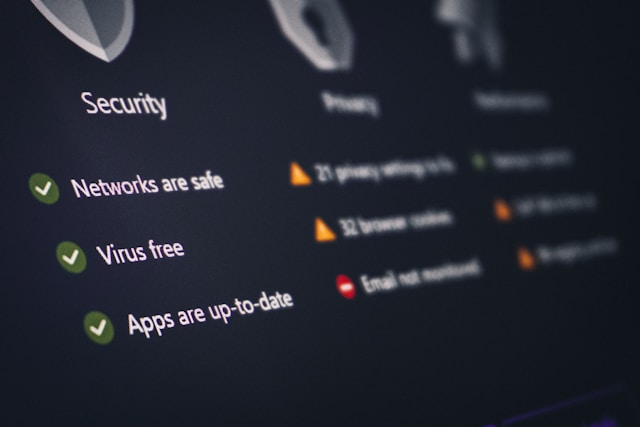
In today’s interconnected world, web browsers serve as the gateway to the internet. They not only provide access to information but also play a crucial role in managing online transactions and communication. However, their widespread use makes them a prime target for cyber threats. Security plugins offer an added layer of defense against these vulnerabilities, helping to safeguard personal data and prevent unauthorized access.
Selecting the Right Security Plugins
Choosing the appropriate security plugins for your browser can seem daunting given the plethora of options available. It’s essential to focus on plugins that align with your specific security needs, whether it be blocking ads, preventing tracking, or enhancing privacy.
Ad Blockers
Ad blockers not only improve your browsing experience by removing intrusive advertisements but also enhance security by reducing the risk of malicious ad content. Popular choices include uBlock Origin and AdBlock Plus. Both are easy to install and configure, offering customizable settings to cater to individual preferences.
Anti-Tracking Extensions
Privacy is a significant concern when browsing online. Anti-tracking extensions like Privacy Badger and Ghostery help prevent companies from tracking your web activity, providing a more private browsing experience. These tools can automatically block tracking scripts and cookies.
Password Managers
Using a password manager plugin ensures that you can create and store strong, unique passwords without memorizing each one. Plugins such as LastPass and Bitwarden integrate seamlessly with most browsers, providing secure autofill capabilities and password generation features.
Web of Trust (WOT)
The Web of Trust plugin is a community-driven tool that helps identify potentially harmful websites. It uses user reviews and ratings to assess the trustworthiness of websites, which can prevent phishing attacks and other malicious activities.
Installing and Configuring Security Plugins
Once you’ve identified the plugins that best suit your needs, the next step is installation and configuration. Here’s a general process applicable across major browsers like Chrome, Firefox, and Edge:
- Access the Browser’s Extension Store: Navigate to your browser’s extension store or marketplace. For Chrome, it’s the Chrome Web Store; for Firefox, it’s Mozilla Add-ons.
- Search for Desired Plugin: Use the search bar to find the specific security plugin you wish to install.
- Review Plugin Details: Check the plugin’s ratings, reviews, and number of users. High ratings and positive reviews generally indicate reliable performance.
- Install the Plugin: Click the ‘Add’ or ‘Install’ button. The plugin will be downloaded and added to your browser automatically.
- Configure Plugin Settings: Once installed, access the plugin’s settings via your browser’s extensions menu. Customize its settings according to your preferences and requirements.
Common Vulnerabilities Addressed by Security Plugins
A solid understanding of common browser vulnerabilities will help appreciate the protective role of security plugins:
- Phishing Attacks: Malicious websites posing as legitimate entities can steal sensitive information. Security plugins often contain filters or databases that block access to known phishing sites.
- Malvertising: This involves harmful ads designed to deliver malware. Ad blockers reduce exposure by preventing ads from loading altogether.
- Tracking Cookies: While not always malicious, tracking cookies can infringe on privacy by recording user behavior. Anti-tracking plugins block these cookies.
A Scenario: Jane Secures Her Browser
Let’s explore a practical scenario. Jane, an avid online shopper, realizes she needs better browser security after experiencing multiple spam emails post-purchase from various online stores. Concerned about potential breaches, she decides to enhance her browser’s defenses using security plugins.
Jane begins by researching the best plugins for her needs. She installs uBlock Origin to eliminate disruptive ads that may contain malware links. To protect her personal information from being tracked across shopping sites, she adds Privacy Badger. Finally, recognizing her habit of using similar passwords across sites, she integrates LastPass, enabling her to generate unique passwords effortlessly.
After configuring these plugins according to her preferences, Jane experiences a noticeably cleaner browsing environment with fewer ads and peace of mind knowing her passwords are secure. Her email inbox sees a marked reduction in spam, underscoring the effectiveness of her new security measures.
Maintaining and Updating Plugins
The effectiveness of security plugins is contingent upon regular maintenance and updates. Here are some tips:
- Enable Auto-Updates: Most browsers allow extensions to update automatically. Ensure this setting is enabled to receive the latest security patches and features.
- Review Plugin Permissions: Occasionally review what permissions your plugins have access to. Revoke any unnecessary permissions that could compromise privacy.
- Check Compatibility: Regularly ensure that your plugins are compatible with the current version of your browser to avoid functionality issues.
Troubleshooting Common Issues
If a plugin isn’t performing as expected or causes browser instability, consider these troubleshooting steps:
- Disable Conflicting Plugins: Sometimes, plugins can conflict with each other. Disable one at a time to identify and resolve conflicts.
- Clear Cache and Cookies: A cluttered cache can lead to performance issues. Regularly clearing it may resolve some problems.
- Reinstall Problematic Plugins: If a plugin fails after troubleshooting, uninstall it completely and reinstall it from scratch.
The Future of Secure Browsing
The landscape of cybersecurity is ever-evolving. New threats emerge constantly, necessitating ongoing vigilance and adaptation in browser security practices. By staying informed about emerging trends and updates in security plugins, users can continue to navigate the web safely and securely.