Enhancing Your Digital Security: Two-Factor Authentication Made Simple
Understanding Two-Factor Authentication (2FA)
In the ever-evolving world of cybersecurity, protecting your online accounts is more critical than ever. Two-Factor Authentication (2FA) provides an additional layer of security beyond the traditional password, making it significantly harder for unauthorized users to gain access to your accounts. But how does it work, and how can you effectively implement it across different platforms?
2FA requires not only a password and username but also something that only the user has on them — i.e., a piece of information only they should know or have immediately to hand, such as a physical device. This article will guide you through setting up 2FA on various platforms to enhance your digital security.
The Mechanics of Two-Factor Authentication
Two-Factor Authentication typically involves two elements:
- Something You Know: A password or PIN.
- Something You Have: A phone or a hardware token.
Some systems may also incorporate a third element, such as biometric verification (e.g., fingerprint or facial recognition). The key advantage here is that even if a hacker obtains your password, they would still need the second factor to access your account.
Common Forms of 2FA
- SMS-Based Verification: After entering your password, a one-time code is sent to your mobile phone via SMS. Entering this code grants you access.
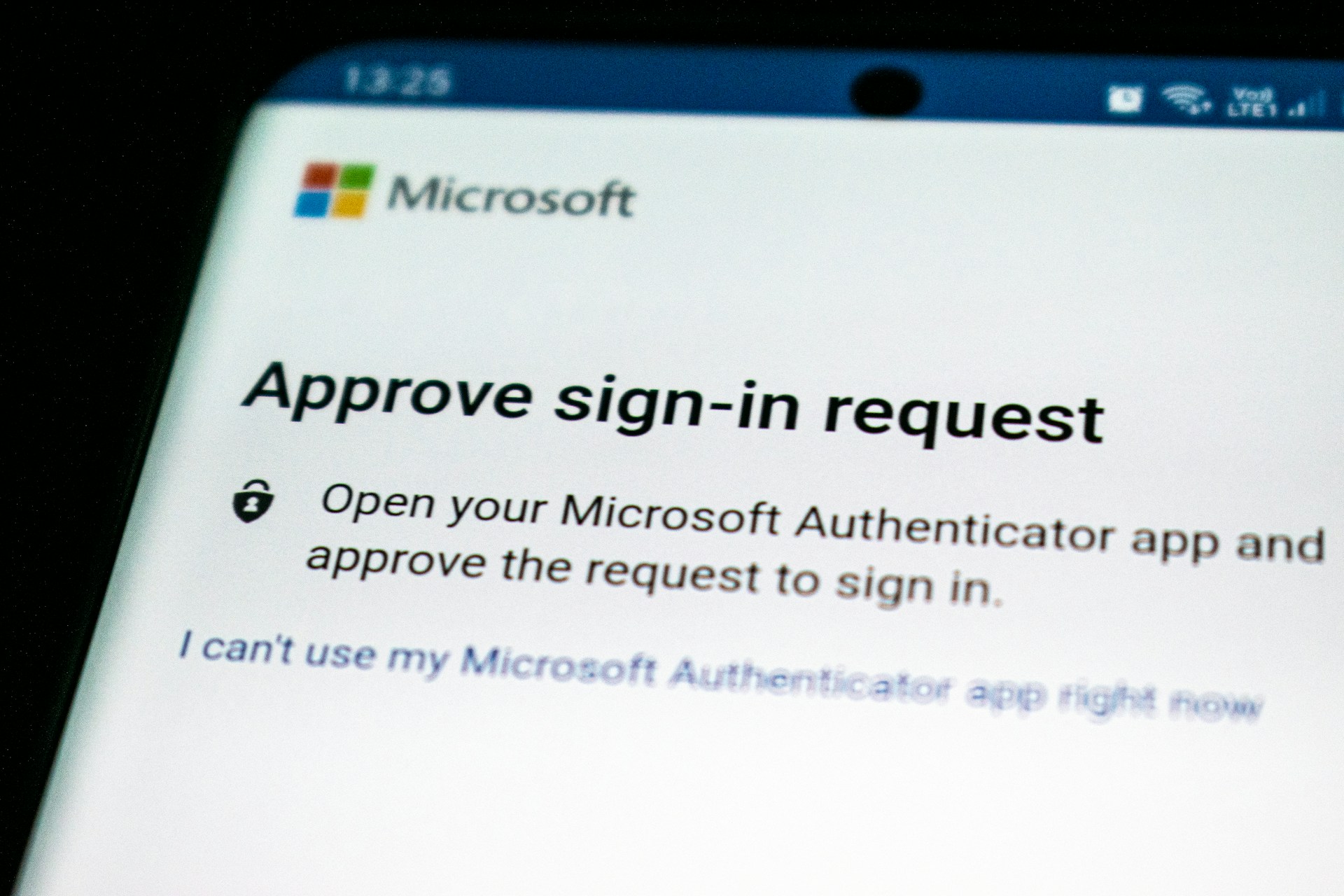
- Authenticator Apps: Apps like Google Authenticator or Authy generate a time-sensitive code that you must enter in addition to your password.
- Email Verification: A code is sent to your email address, adding an extra step after password entry.
- Hardware Tokens: Physical devices like YubiKey generate a security code or are used directly via USB for authentication.
Each method has its benefits and potential downsides, which we’ll explore further.
Step-by-Step Guide to Enabling 2FA on Popular Platforms
Enabling 2FA on Google Accounts
- Go to your Google Account Security Page.
- Under 'Signing in to Google,' select '2-Step Verification' and click 'Get Started.'
- Follow the on-screen instructions to choose your second factor (e.g., SMS or Google Authenticator).
- Complete the setup by entering the verification code sent via your chosen method.
This process secures not just your Gmail but all services linked to your Google account.
Securing Your Facebook Account with 2FA
- Go to Facebook's settings page and click on 'Security and Login.'
- Select 'Use two-factor authentication' and choose your preferred security method.
- You can opt for text messages or a third-party authentication app like Duo Mobile.
Facebook also offers the option to save backup codes for situations where you might lose access to your primary authentication method.
Setting Up 2FA for Apple ID
- On your iOS device, go to Settings > [your name] > Password & Security.
- Select 'Turn On Two-Factor Authentication.'
- Follow the on-screen instructions. You may be asked to answer some security questions and verify your phone number.
For macOS users, these settings are accessible via System Preferences > Apple ID > Password & Security.
Pros and Cons of Different 2FA Methods
SMS-Based Verification
- Pros: Simple and widely supported across platforms.
- Cons: Vulnerable to SIM-swapping attacks and phishing scams. Not secure if someone can intercept your text messages.
Authenticator Apps
- Pros: More secure than SMS; codes change every 30 seconds, reducing risk from stolen passwords.
- Cons: Requires smartphone; can be inconvenient if your phone is lost or broken without backup codes.
Email Verification
- Pros: Convenient if you frequently access email and have good email security practices.
- Cons: Less secure if email accounts are not protected with their own 2FA.
Hardware Tokens
- Pros: Extremely secure, difficult for attackers to replicate physical tokens.
- Cons: Additional cost for purchasing tokens, potential inconvenience if lost or left behind.
Best Practices for Using Two-Factor Authentication
- Always keep backup codes in a safe location that’s separate from your device.
- If using SMS or email, ensure these accounts are also secured with 2FA to prevent interception.
- Regularly review and update security settings on each platform.
Avoid disabling 2FA once enabled, even if it seems cumbersome. The added security significantly outweighs any temporary inconvenience.
Troubleshooting Common Issues
Trouble Receiving Codes
If you're not receiving SMS codes, ensure there is no network disruption on your phone and that your number is entered correctly. For authenticator apps, check that your phone's time settings are set to automatic; incorrect time can cause code discrepancies.
Losing Access to Your Second Factor
If you lose access (e.g., lost phone), use backup codes provided during setup. For hardware tokens, it's wise to have a secondary method enabled (like an authenticator app) as a contingency plan.
The Future of Two-Factor Authentication
The landscape of digital security is always changing. As cyber threats become more sophisticated, so too do the methods for combating them. Emerging trends like biometric authentication are set to play a more prominent role in the future of 2FA. While not perfect, these advancements aim to make online privacy more robust without sacrificing user convenience. Regardless of the method, enabling 2FA is a critical step everyone should take to secure their digital lives.